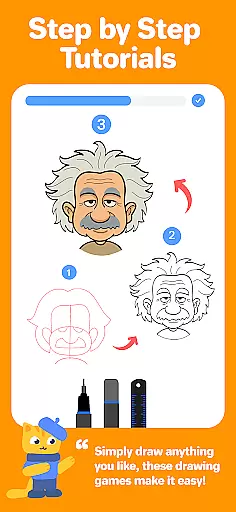
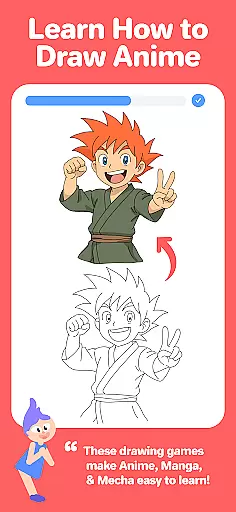
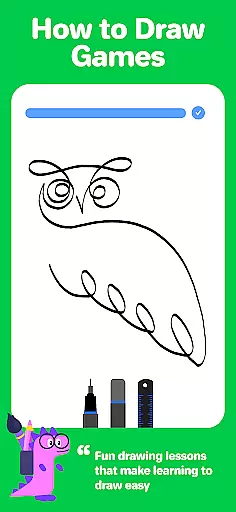
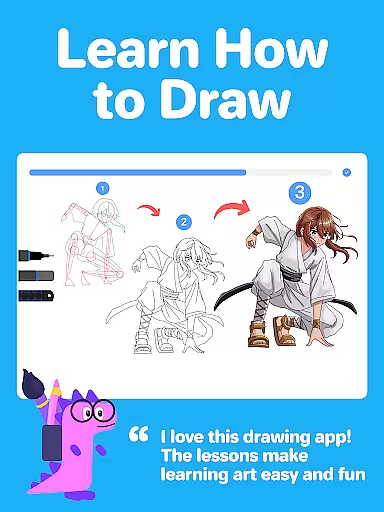
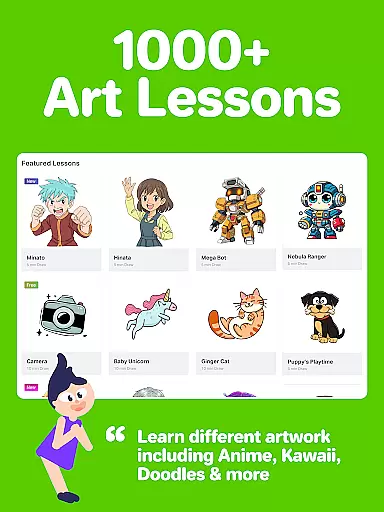
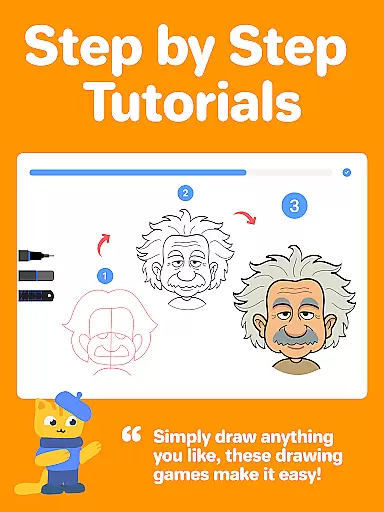
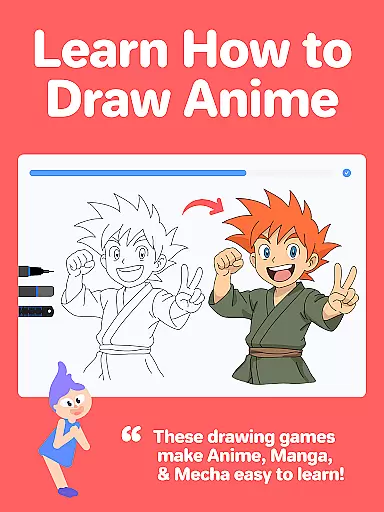
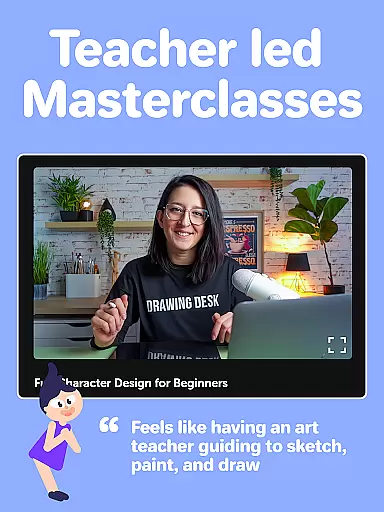
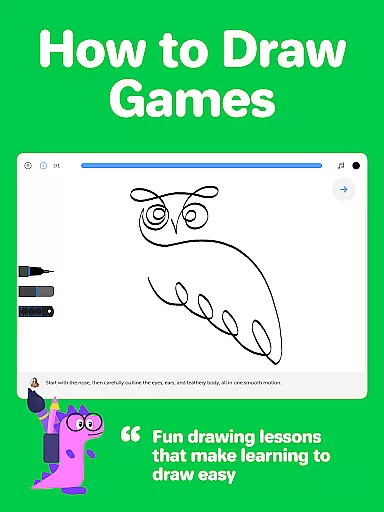
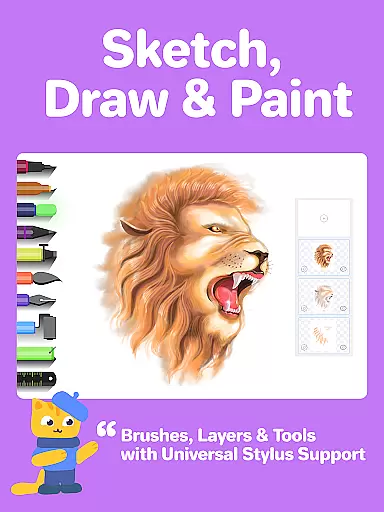
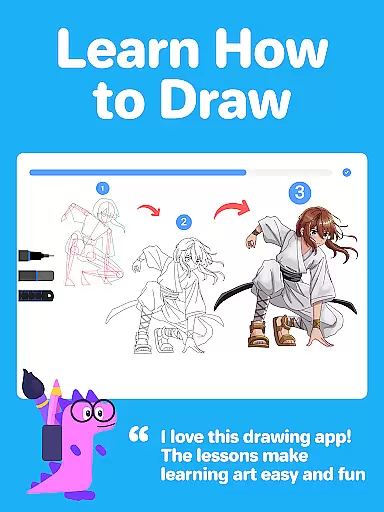
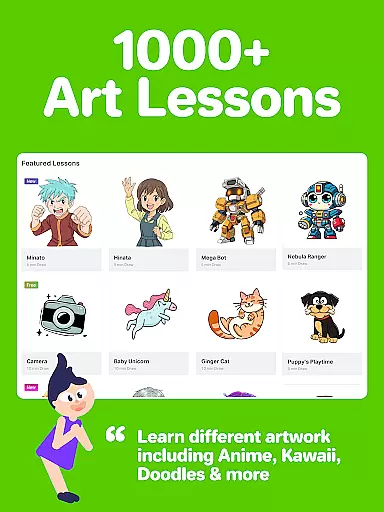
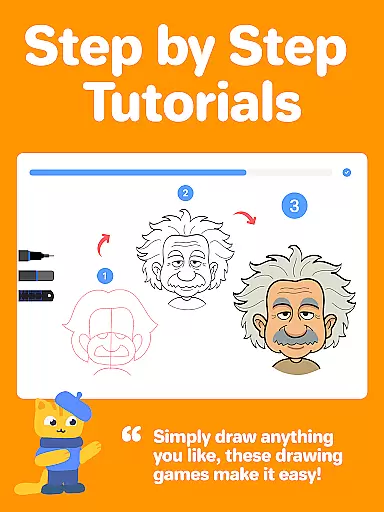
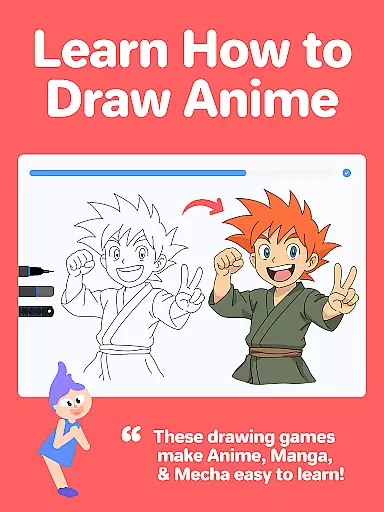
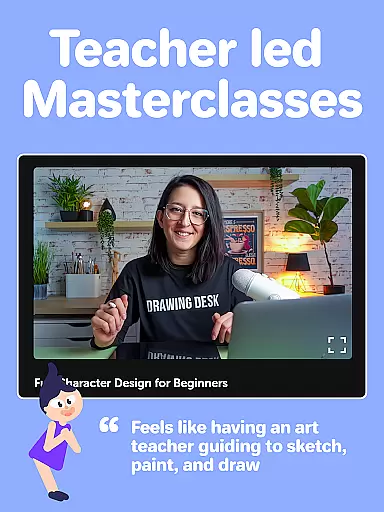

Drawing Desk is a premier digital art application designed for both beginners and advanced artists. With over 70 million users globally, this app offers an extensive suite of drawing and painting tools including pencils, crayons, watercolor brushes, and more. It stands out with its unique educational features such as 1000+ step-by-step drawing lessons, interactive drawing games, and masterclasses conducted by professional artists.
The app provides a structured learning path where users can select their artistic goals and unlock personalized plans. This feature ensures that learners remain motivated while refining their skills. Additionally, Drawing Desk incorporates AI-powered creative tools like Sketch to Art AI, Text to Art AI, and Auto Colorize, which enhance the user's ability to create stunning artworks efficiently.
Whether you're looking to learn new techniques or simply express your creativity, Drawing Desk caters to all levels of artistic proficiency. Its comprehensive toolset and educational resources make it an invaluable companion for anyone interested in digital art.
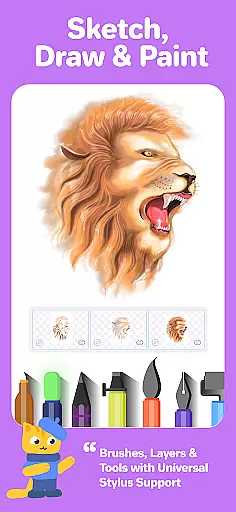
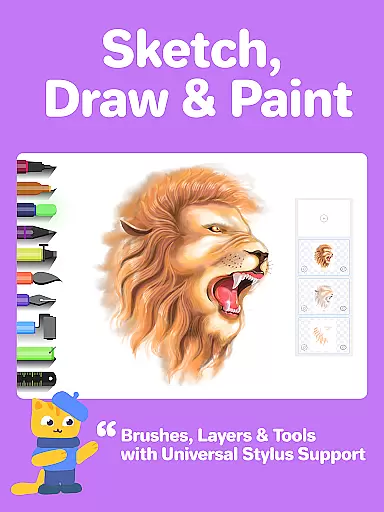
Drawing Desk boasts an impressive array of features tailored to meet the needs of aspiring and professional artists alike. The app includes 25+ sketch tools such as pens, pencils, crayons, neon markers, watercolor brushes, ink, smudge tools, erasers, and fill buckets. These tools allow users to experiment with different styles and techniques on various canvas sizes, providing unlimited creative possibilities.
In addition to its robust toolset, Drawing Desk offers innovative AI-powered features. Users can leverage Sketch to Art AI and Text to Art AI to transform simple sketches into detailed artworks. The Auto Colorize function enables quick coloring of sketches within seconds. Furthermore, the app provides tools to remove backgrounds and unwanted objects from photos and drawings, streamlining the editing process.
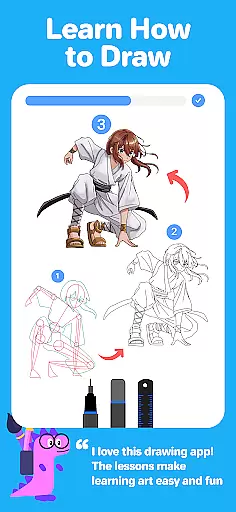
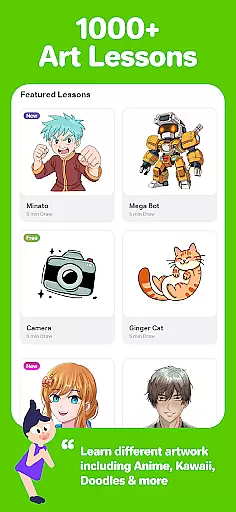
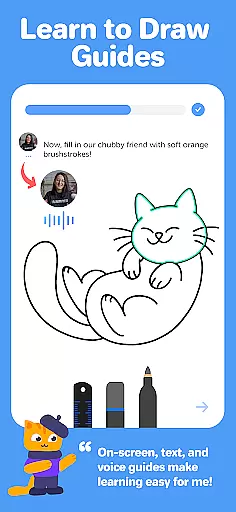
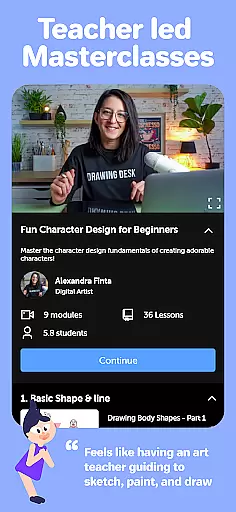
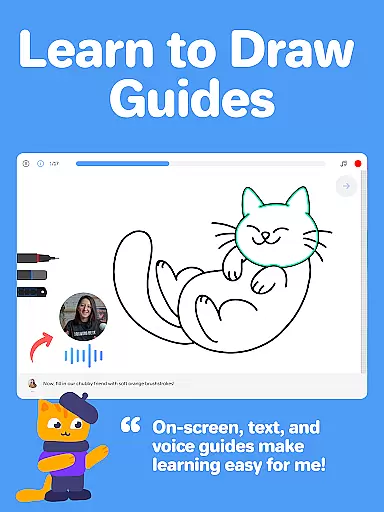
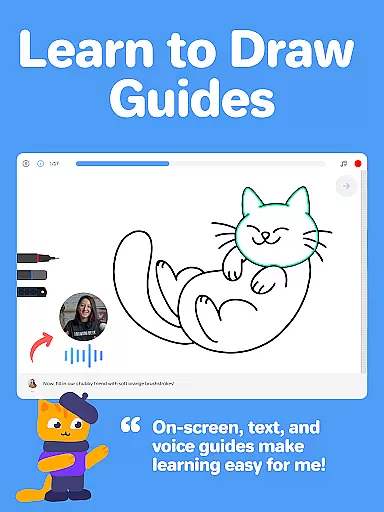
For those focused on learning, Drawing Desk presents a library of 1000+ step-by-step drawing lessons covering diverse topics like Anime, Manga, Kawaii, Caricatures, and more. Each lesson comes with on-screen guides, text, and voice instructions, ensuring a comprehensive learning experience. Masterclasses led by professional artists offer video tutorials, step-by-step guides, and expert tips, making Drawing Desk a complete package for artistic growth.
Creative tools are the backbone of any art and design application, providing users with the necessary instruments to bring their visions to life. Drawing Desk stands out by offering an extensive suite of over 25 sketch tools including pen, pencil, crayon, neon, watercolor brush, ink, smudge, eraser, and fill bucket. These tools cater to a wide array of artistic needs, from basic sketching to advanced painting techniques.
In addition to traditional tools, Drawing Desk also provides unique features such as the symmetry tool, quick shape drawing, and over 200 instant shapes for users to incorporate into their artwork. The app supports unlimited layers, various canvas sizes (available in the Pad app), color palettes, gradients, and a fill bucket tool with more than 125 textures. This vast selection ensures that artists can experiment with different styles and mediums without limitation.
For those interested in digital innovation, Drawing Desk integrates AI-powered creative tools. Users can enjoy Sketch to Art AI, Text to Art AI, and Auto Colorize features which streamline the coloring process and offer smart solutions like background removal and object elimination from photos and drawings. Such advancements not only save time but also open new avenues for creativity.
The comprehensive nature of Drawing Desk's toolkit empowers both amateur and professional artists to produce high-quality digital illustrations efficiently. With all these capabilities at their fingertips, users can focus on expressing their artistic ideas rather than being constrained by technical limitations.
A versatile canvas is essential for artists who wish to explore different formats and dimensions in their work. Drawing Desk addresses this need by allowing users to draw and paint on various canvas sizes, particularly within its Pad app version. This flexibility enables creators to choose the perfect format that aligns with their project requirements or personal preferences.
Beyond size variations, Drawing Desk offers additional functionalities that enhance the creative process. Artists have access to unlimited layers, giving them the freedom to build complex compositions layer by layer without worrying about running out of space. This feature is crucial for detailed artwork where precision and organization are key.
The inclusion of specialized tools further augments the canvas experience. For instance, the symmetry tool allows for balanced designs while the ability to draw quick shapes adds geometric elements effortlessly. Moreover, with over 200 instant shapes available, artists can quickly add intricate details or complete sections of their work with ease.
By combining adaptable canvas options with powerful supplementary tools, Drawing Desk ensures that every artist has the resources needed to realize their vision fully. Whether working on small sketches or large-scale projects, users can trust that they have complete control over their digital workspace.
User-friendly interface
Extensive drawing tools
AI-powered enhancements
Comprehensive learning modules
Vast community support
Some features require subscription
Advanced tools may overwhelm beginners
Limited offline functionality
Occasional performance lags
High storage requirements

Vidu is an AI video generator made for creators and aspiring makers.
 3.30
3.30
Premium version of Shimeji-ee app with no ads & no limit active shimeji
4.2
AI Face Swap, Video Effects Editor, Realtime Morph, Funny Video FX,AI Filters
3.70
Draw on screen: FP sDraw is a simple and lightweight drawing app
4.70
Design unique, funny and adorable cat stickers that reflect your own style!
3.80
2D animation studio for Android tablets - unlimited layers, infinite timeline
4.70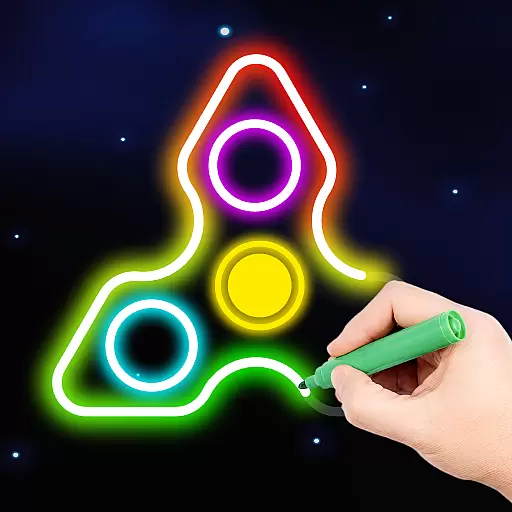
Draw, fidget, and spin glow art! Relax and express your creativity with a finger
4.60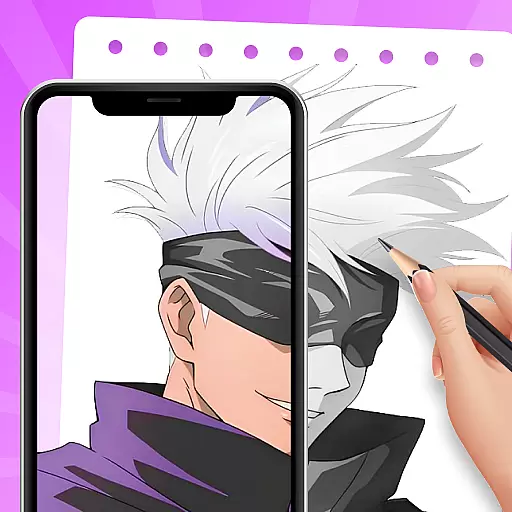
Create amazing pictures and unleash your creative genius with AR Drawing Sketch
4.40
All-in-One art, logo & collage maker. Design photos and edit video backgrounds
4.80
Create color palette from Image, RGB & RYB Color wheel harmonies, Color Scheme
4.50
Create and Design Custom Logos in Seconds with AI-Powered Tools!
4.40
Trace, draw, and create art with AR - from memes to masterpieces!
4.30
Text to Image, Image to Video & AI Chat
4.20
Unleash the artist in you with our AR drawing and tracing tool for photo drawing
4.10
Paint with oils and sketch with natural tools on a realistic virtual canvas.
3.80
Sketch, trace and master AR drawing with awesome anime art!
3.30
Meet the magic aı 3d photo generator and smart AI video generator app.
3.20
Pose and morph realistic male and female models! 3D poser app
3.00
Transform photos into amazing monochrome dither art with professional algorithms
4.3


User Reviews